![logo--white-s-2.svg]](https://help.streamwork.com/hubfs/logo--white-s-2.svg)
StreamWork enables you to collaborate on videos and media with your team. Anyone with access to media can leave comments directly on the media file, or even draw on it. If you are reviewing a video, you can even leave comments on specific time codes, or even a time code range.
To comment on a video or media file:
1. Open the share link you received or click on the media thumbnail in StreamWork to open the media file in Media Viewer.
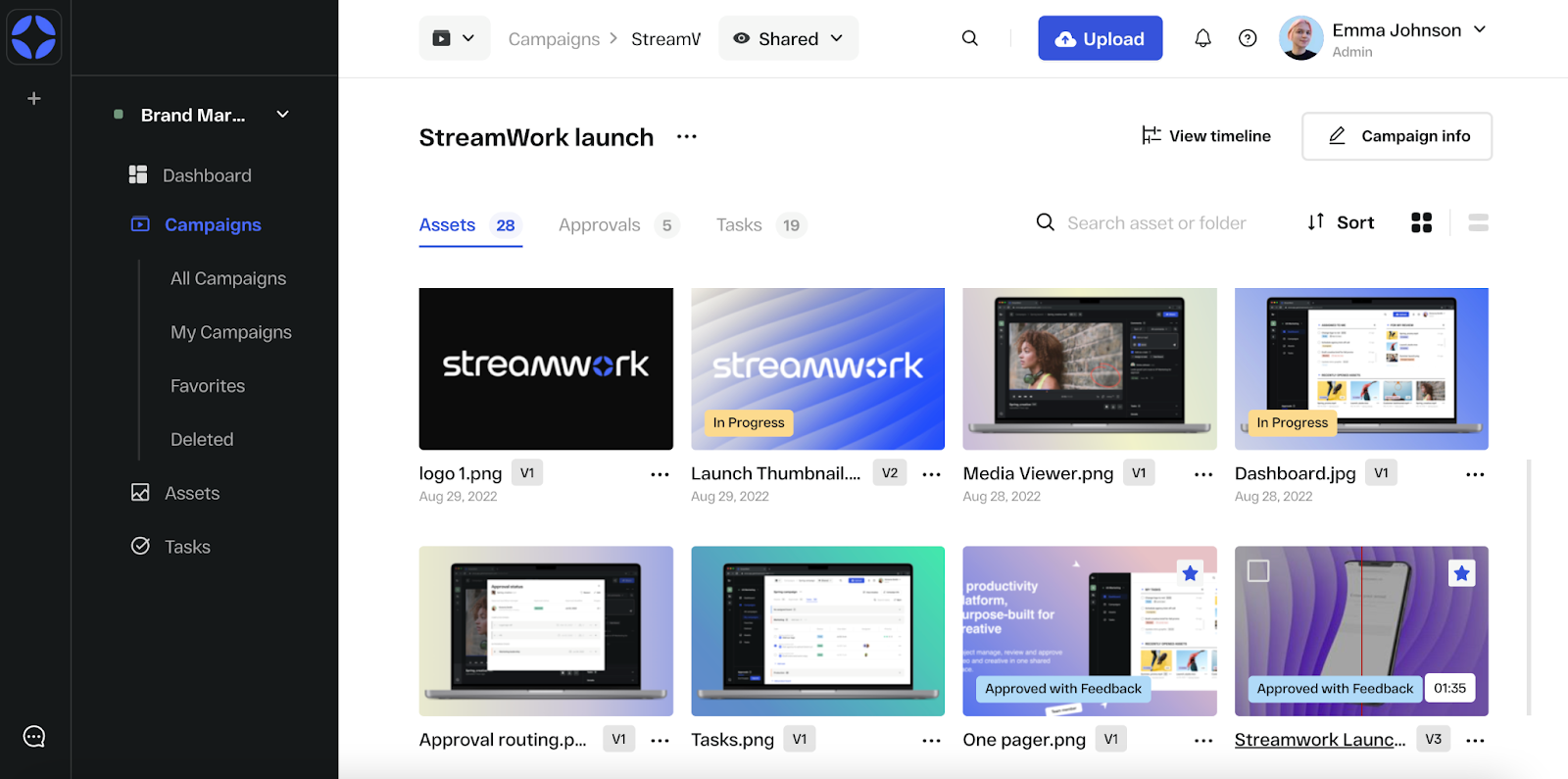
2. The media file will open in Media Viewer, an interface where you can view and collaborate on any media in StreamWork. If you’re viewing a video, you can play, pause, rewind the video directly in your browser.
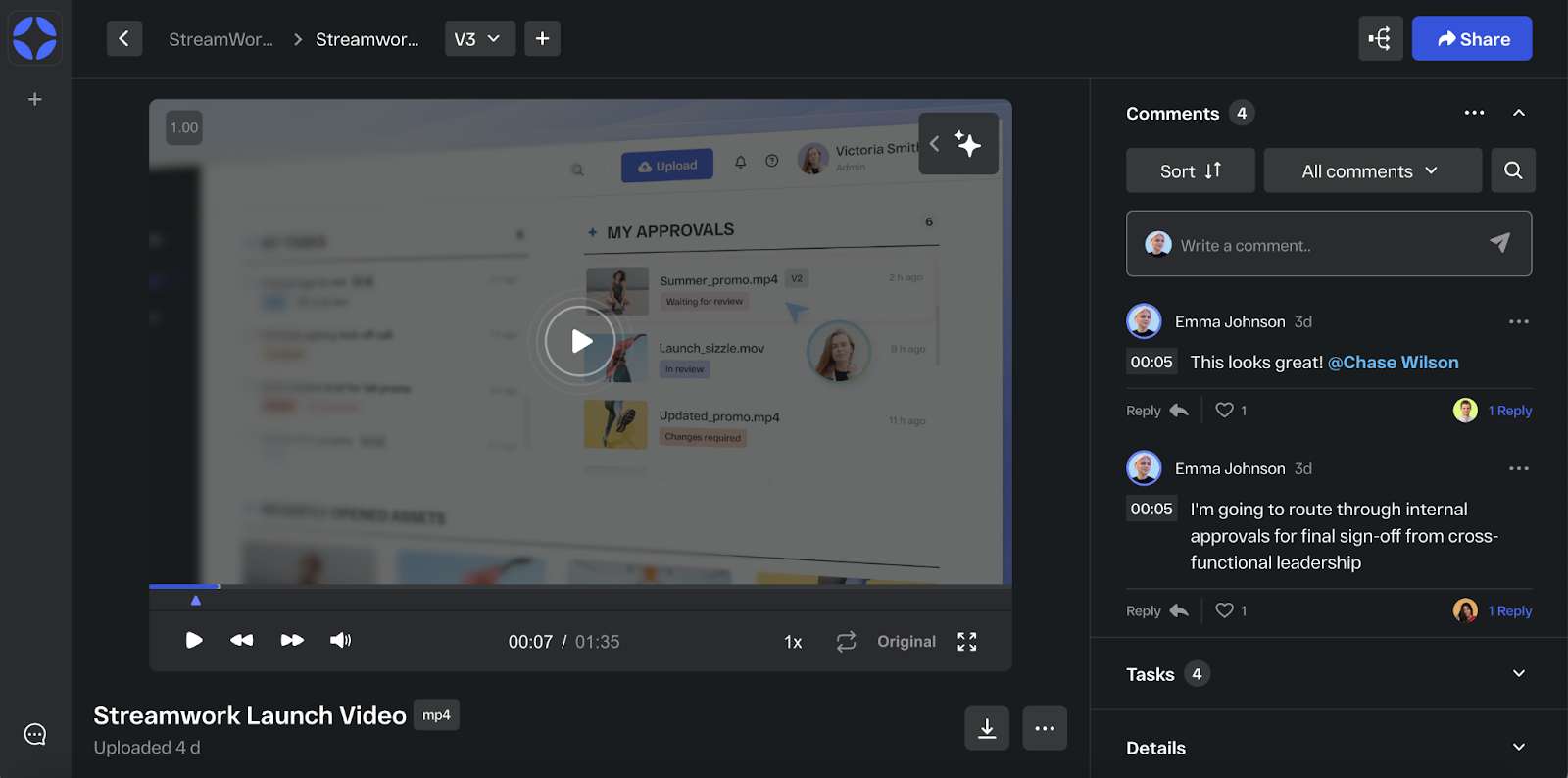
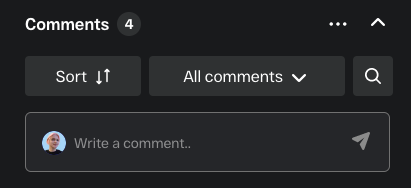
3. To leave a comment on the media file, start typing your comment directly in the comment box on the right-hand side of the screen. When you start typing a comment, videos will automatically pause. The timecode of the comment will be saved alongside the comment.
4. If you have feedback that applies to a timecode range (ex. 00:05 - 00:09 seconds), you can set the timecode range. Once you begin typing a comment in the comment box, a blue slider will appear on the video timeline.
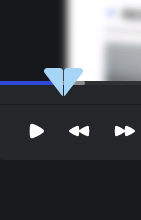
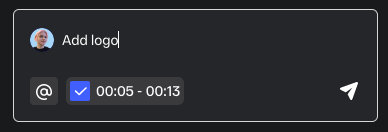
5. Click on either side of the slider and drag it to the right or left to cover the exact timecode range your comment applies to. When you do this, the timecode range you selected will automatically appear in the comment. Press enter to submit the comment and save to the range specified.
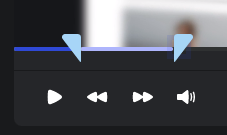
6. If you choose not to move forward with the timecode range, make sure to press the "Clear playback range Esc" button on the video player. This will exit you out of the blue slider.

Tip: If you'd like to leave comments on a media file without a timecode associated (ex. general comments about a video or media), uncheck the timecode in the comment box. This means your feedback won't be associated with a specific point in time.