![logo--white-s-2.svg]](https://help.streamwork.com/hubfs/logo--white-s-2.svg)
How to hide all comments
Click the Hide comments button in the viewer toolbar. This hides all visible comments and annotations so you can see a clean version of the file. Click the button again to show them.
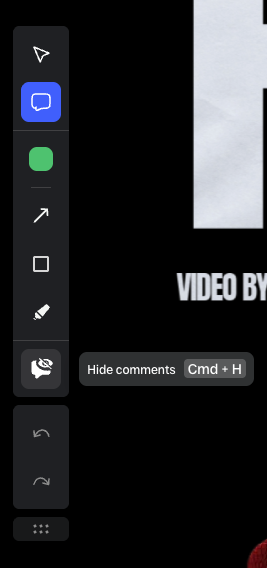
Hiding comments does not delete or resolve them. It is a temporary view toggle.
How to resolve a comment / use comments as a to-do list
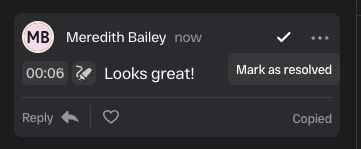
- Open the comment you want to resolve
- Click the checkmark or Mark as resolved button on the comment
- The comment will be marked complete and visually separated from open items
How to hide resolved comments
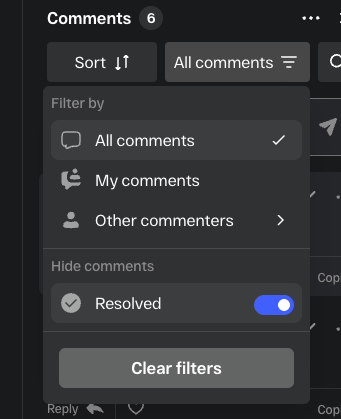
- Open the Comments panel on the right side of the Media Viewer.
- Go to the "All comments" filter at the top. Toggle on the Hide Resolved option
- Only open, unresolved comments will remain visible
This is useful when working through a long feedback list and you want to focus only on what still needs attention.
How to view resolved comments again
Toggle Hide resolved off to show all comments, including resolved ones.