![logo--white-s-2.svg]](https://help.streamwork.com/hubfs/logo--white-s-2.svg)

Why connect Slack with StreamWork?
The StreamWork + Slack integration helps teams:
- Stay informed without switching tools
- Respond faster to reviews and approvals
- Keep creative workflows moving in real time
You’ll receive notifications directly in Slack for uploads, comments, approvals, and workflow changes across your StreamWork projects.
How to connect Slack to StreamWork
You can install the Slack integration directly from within your StreamWork account.
Steps to install the Slack integration:
1. In StreamWork, click your avatar and profile photo in the top-right corner of your account.
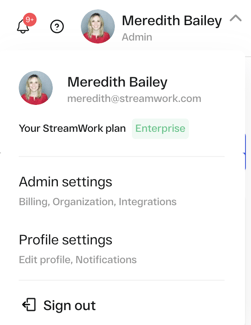
2. Select Profile Settings from the dropdown menu.
3. Navigate to the Notifications tab.

4. Scroll to the Chat App Connection section.
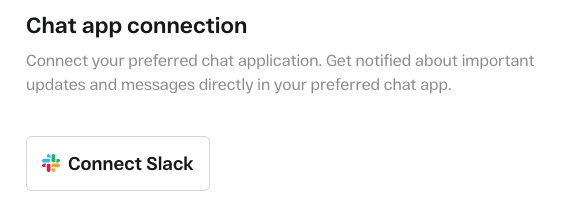
5. Click Install Slack.
6. Next, follow the Slack prompts to add the StreamWork + Slack app to your Slack workspace. You'll likely be required to sign-in to your Slack account in order to connect the apps.
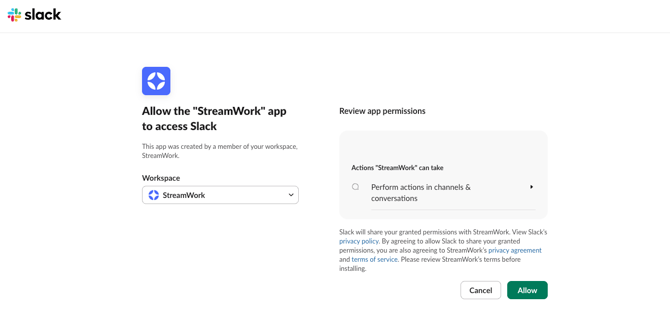
7. Once installed, StreamWork will appear as a dedicated app in your Slack account. Click on the "StreamWork" app in Slack to start seeing live updates from StreamWork directly in your Slack account without switching context.
What you’ll see in Slack after connecting
After installation, StreamWork will send rich, actionable notifications to Slack, including:
File Uploads
- When a new file is uploaded to a workspace or project
- Who uploaded the file
- File version number
- Asset type and file size
- A thumbnail or quick preview of the file in Slack
- A “View Asset” button that opens the file directly in StreamWork’s Media Viewer
Project & Folder Activity
- When someone joins a project or folder (shared or private)
- When someone leaves a project or folder (shared or private)
- Timestamped activity so you know exactly when changes happen
Comments & Feedback
- When a new comment is left on a file, by whom, and when
- A “View Comment” link that takes you straight to the feedback in StreamWork
Approval Workflow Updates
- When an asset or version reaches a final decision (ex. Approved, Approved with feedback, Changes required) by whom and when
- When a file moves from one approval stage to the next, so you always know what’s progressing
Sync multiple workspaces into one Slack flow
If you work across multiple StreamWork workspaces or accounts, you can sync them into a single Slack experience. This makes it easy to stay informed across teams, projects, and departments without missing important updates.
Best Practices
- Use Slack notifications to quickly jump into StreamWork when action is needed
- Combine Slack alerts with StreamWork dashboards for full visibility
- Encourage reviewers to click directly into assets from Slack to keep feedback timely
Resources
-
Need help? If you have questions about connecting Slack or managing notifications, reach out to us at support@streamwork.com or via the in-product chat and we’ll be happy to help!
- StreamWork Privacy Policy