---
title: How do I pin a panel in the Media Viewer?
description: Learn how to pin the comments, file details, or tasks panel open in the StreamWork Media Viewer so it stays visible while you review.
---
[Skip to content](https://help.streamwork.com/knowledge/how-do-i-pin-a-panel-in-the-media-viewer#main-content)
English
Show submenu for translations
![logo--white-s-2.svg\]](https://help.streamwork.com/hubfs/logo--white-s-2.svg)
Open main navigation
Close main navigation
- English
Show submenu for translations
- Product
Product
Hello. How can we help you?
- There are no suggestions because the search field is empty.
1. [Help Center](https://help.streamwork.com/knowledge?hsLang=en)
2. [Comments and Annotations](https://help.streamwork.com/knowledge/comments-and-annotations?hsLang=en)
# How do I pin a panel in the Media Viewer?
## By default, the comment panel in the Media Viewer is opened. If you prefer to close it while you review, it's quick and easy to collapse.
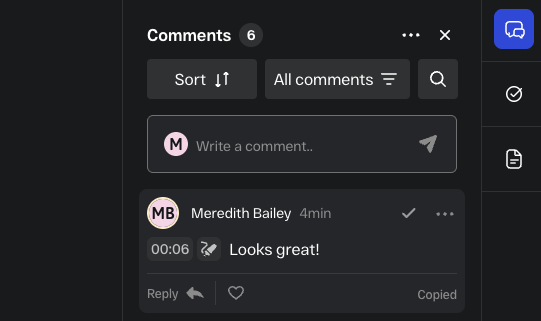
**How to pin open the comments panel**
1. Open the Media Viewer by clicking on any asset
2. The comment panel on the right side will be open by default
3. Open or close this panel anytime by clicking the "Comment discussion" icon on the far right side of your screen.
4. If you'd like to close the panel, click "x"
**How to pin open the task or details panels**
- To open the task panel, click the second icon down (circle with check mark) on the far right side of your screen. This will show you all tasks associated with the asset version you're viewing. If you'd like to close the task panel, click "x"
- To open the asset details panel, click the third icon down (document icon) on the far right of your screen. This will show you all asset details. You can add a custom asset description in this area as well. If you'd like to close the details panel, click "x"
**Tips**
- Pinned panels persist for the current session
- Pinning a panel does not affect how other team members see the viewer
- You can also use a keyboard shortcut to open and close the panel: Shift + Option + 1
- [About StreamWork](https://help.streamwork.com/knowledge/about-streamwork?hsLang=en)
- [Get started](https://help.streamwork.com/knowledge/get-started?hsLang=en)
- [Roles](https://help.streamwork.com/knowledge/roles?hsLang=en)
- [Workspaces](https://help.streamwork.com/knowledge/workspaces?hsLang=en)
- [Projects](https://help.streamwork.com/knowledge/projects?hsLang=en#main-content)
- [Projects - Project Permissions](https://help.streamwork.com/knowledge/projects?hsLang=en#projects-project-permissions)
- [Folders](https://help.streamwork.com/knowledge/folders?hsLang=en)
- [Media](https://help.streamwork.com/knowledge/media?hsLang=en#main-content)
- [Media - Media Management](https://help.streamwork.com/knowledge/media?hsLang=en#media-media-management)
- [Comments and Annotations](https://help.streamwork.com/knowledge/comments-and-annotations?hsLang=en#main-content)
- [Comments and Annotations - Management](https://help.streamwork.com/knowledge/comments-and-annotations?hsLang=en#comments-and-annotations-management)
- [Tasks](https://help.streamwork.com/knowledge/tasks?hsLang=en#main-content)
- [Tasks - Task Management](https://help.streamwork.com/knowledge/tasks?hsLang=en#tasks-task-management)
- [Approval routing](https://help.streamwork.com/knowledge/approval-routing?hsLang=en)
- [Share links](https://help.streamwork.com/knowledge/share-links?hsLang=en)
- [Integrations](https://help.streamwork.com/knowledge/integrations?hsLang=en)
- [Account settings and notifications](https://help.streamwork.com/knowledge/account-settings-and-notifications?hsLang=en)
[](https://www.streamwork.com/)
Copyright © 2026, StreamWork