---
title: How do I review on mobile?
description: Learn how to review, comment, annotate, and approve creative assets from your phone using the StreamWork mobile experience. No app download required.
---
[Skip to content](https://help.streamwork.com/knowledge/how-do-i-review-on-mobile#main-content)
English
Show submenu for translations
![logo--white-s-2.svg\]](https://help.streamwork.com/hubfs/logo--white-s-2.svg)
Open main navigation
Close main navigation
- English
Show submenu for translations
- Product
Product
Hello. How can we help you?
- There are no suggestions because the search field is empty.
1. [Help Center](https://help.streamwork.com/knowledge?hsLang=en)
2. [Comments and Annotations](https://help.streamwork.com/knowledge/comments-and-annotations?hsLang=en)
# How do I review on mobile?
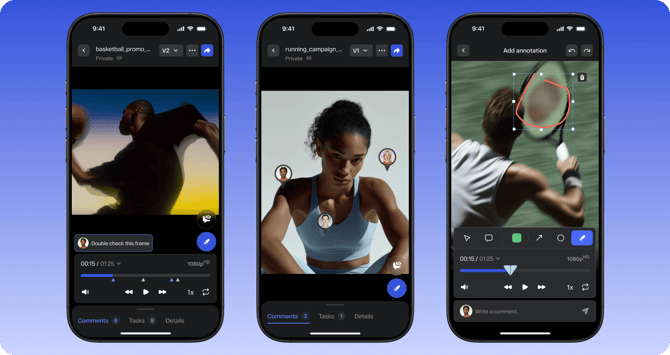
## Media Viewer 2.0 includes a fully refreshed mobile experience so you can review, comment, and approve creative from your phone without needing to be at your desk.
****
**Accessing a review on mobile**
Open your StreamWork approval link on any mobile browser. No app download is required. The viewer will load automatically in a mobile-optimized layout.
**Leaving comments on mobile**
Tap the blue comment bubble in the lower right corner of the asset to activate comments. Tap anywhere on the asset to drop a comment at that location. Type your feedback and tap the paper plane "Submit" icon to save it.
**Using annotation tools on mobile**
Once a comment is activated, drawing tools will appear at the bottom of the asset. Select a tool to start annotating. Use your finger to draw an annotation directly on the asset. Available tools include the marker, shapes, arrows and color options.
**Approving on mobile**
If you have approval permissions, the Approve button is available at the top of the viewer. Tap it to submit your approval decision.
**Navigating versions on mobile**
Swipe or use the version selector can be found at the top of the screen. If you tap it, you will be able to switch between versions of a file.
**Reviewing videos on mobile**
Tap the video to play or pause. Tap the blue comment bubble in the lower right corner to open the video timeline and drawing tools. Tap to leave a comment. Any annotation you draw on the video will be saved at the timecode where you left it. Timecode range pickers are available if your comment spans a range of frames vs. an individual frame.
**Tips**
- The mobile experience works on any modern mobile browser, including Safari and Chrome
- You do not need a StreamWork account to review and comment on a shared review link
- All comments left on mobile are visible to the full team in the desktop viewer
- [About StreamWork](https://help.streamwork.com/knowledge/about-streamwork?hsLang=en)
- [Get started](https://help.streamwork.com/knowledge/get-started?hsLang=en)
- [Roles](https://help.streamwork.com/knowledge/roles?hsLang=en)
- [Workspaces](https://help.streamwork.com/knowledge/workspaces?hsLang=en)
- [Projects](https://help.streamwork.com/knowledge/projects?hsLang=en#main-content)
- [Projects - Project Permissions](https://help.streamwork.com/knowledge/projects?hsLang=en#projects-project-permissions)
- [Folders](https://help.streamwork.com/knowledge/folders?hsLang=en)
- [Media](https://help.streamwork.com/knowledge/media?hsLang=en#main-content)
- [Media - Media Management](https://help.streamwork.com/knowledge/media?hsLang=en#media-media-management)
- [Comments and Annotations](https://help.streamwork.com/knowledge/comments-and-annotations?hsLang=en#main-content)
- [Comments and Annotations - Management](https://help.streamwork.com/knowledge/comments-and-annotations?hsLang=en#comments-and-annotations-management)
- [Tasks](https://help.streamwork.com/knowledge/tasks?hsLang=en#main-content)
- [Tasks - Task Management](https://help.streamwork.com/knowledge/tasks?hsLang=en#tasks-task-management)
- [Approval routing](https://help.streamwork.com/knowledge/approval-routing?hsLang=en)
- [Share links](https://help.streamwork.com/knowledge/share-links?hsLang=en)
- [Integrations](https://help.streamwork.com/knowledge/integrations?hsLang=en)
- [Account settings and notifications](https://help.streamwork.com/knowledge/account-settings-and-notifications?hsLang=en)
[](https://www.streamwork.com/)
Copyright © 2026, StreamWork