![logo--white-s-2.svg]](https://help.streamwork.com/hubfs/logo--white-s-2.svg)
There are two ways to share media outside of StreamWork for others to view and provide feedback on:
- Share links: Easily share media directly from the Media Viewer. Ideal for quickly sending files as view-only or when you want to collect comments without requiring formal approval.
- Approval routing: Send media through a structured review process for stakeholder sign-off. Perfect for routing creative work across multiple teams or individuals in a specific order - especially when decisions and approvals are required.
To learn more about routing media through stakeholder approval, check out this Help Center article.
Both share links and approval routing links can be shared with unlimited people, inside or outside your organization, for free.
Important: Commenting is disabled on share links while media is in active approval routing to ensure all feedback stays within the designated review process. You can still share the media file during routing, but it will be view-only. If you'd like someone to comment or make a decision, please add them as a reviewer to the existing approval routing. Learn how to add a reviewer to an active approval routing.
To share a media file, follow these steps:
1. Select the media file you would like to share. Click on the media thumbnail to open it in the Media Viewer.
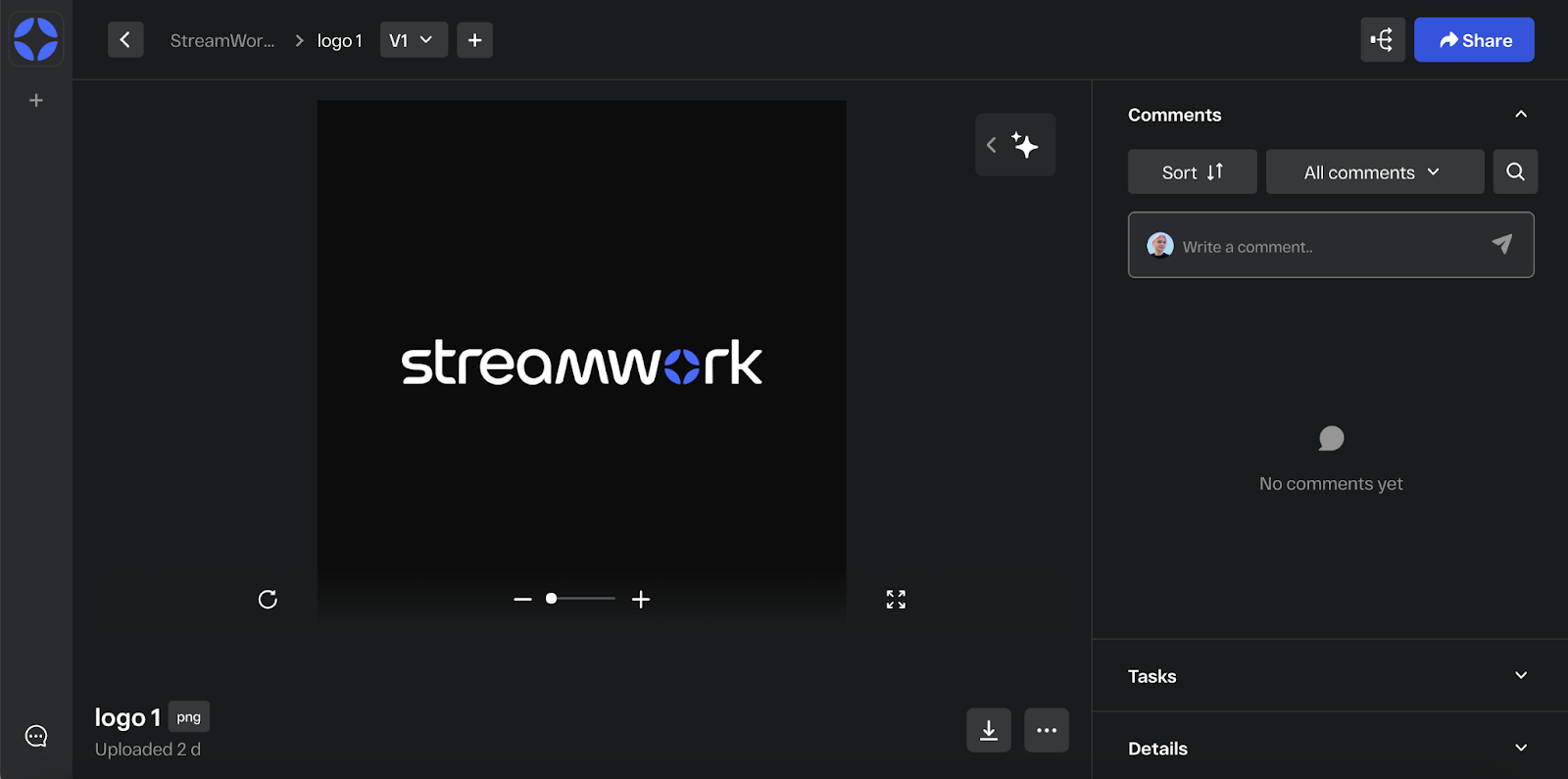
2. In the Media Viewer, select the “Share” button in the top right corner.

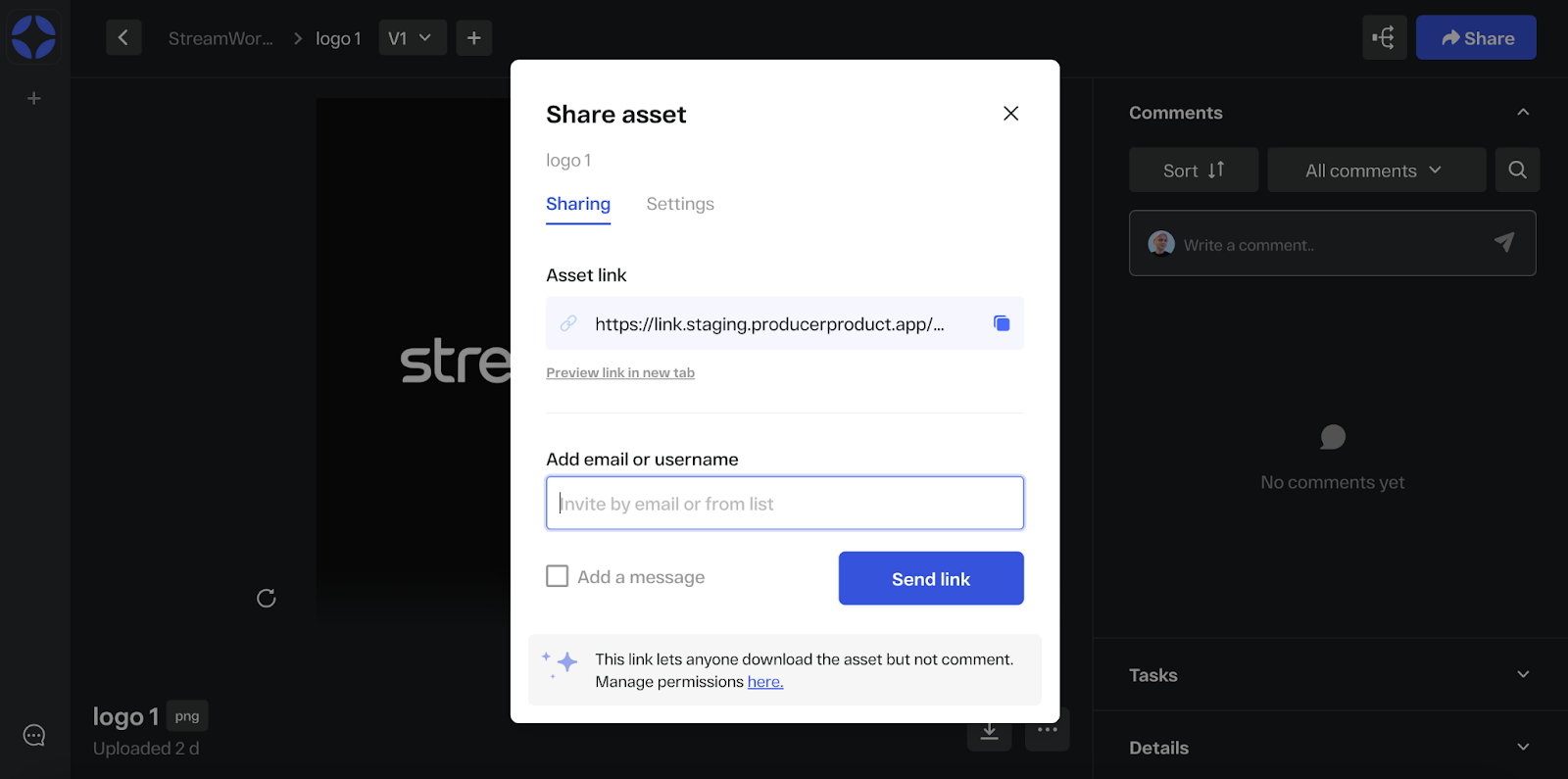
3. Next, choose who you would like to share media with by typing in their username or email. You can share media with unlimited people inside or outside of StreamWork at no cost. People who receive the link do not need a StreamWork account to access the link or leave comments on the media file.
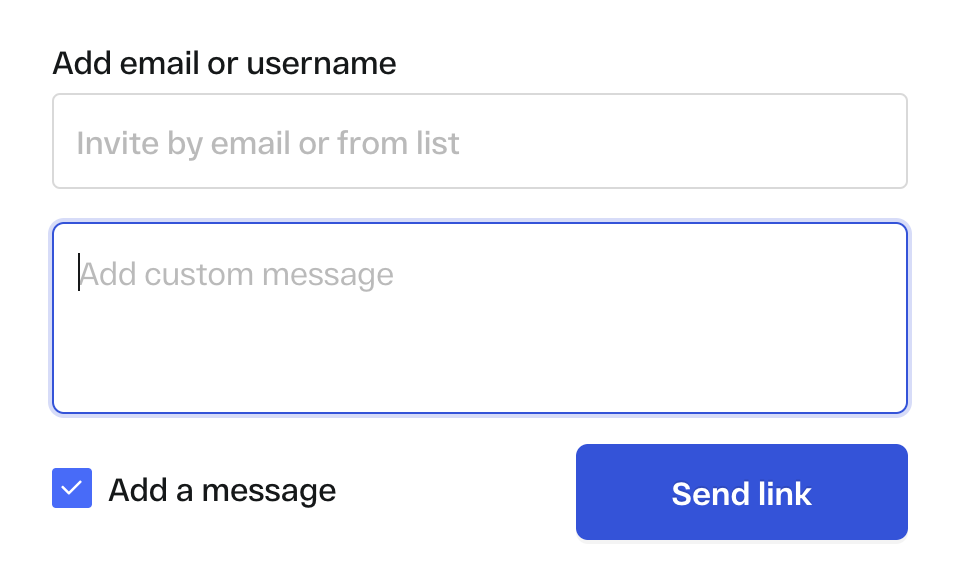
4. Choose whether or not to send a custom message as part of the external link.
5. Next, choose what permissions reviewers who receive the link will have with a simple toggle. You can choose whether the recipient of the media can:
-
- Comment on the media
- Download the media
- Access all versions of the media
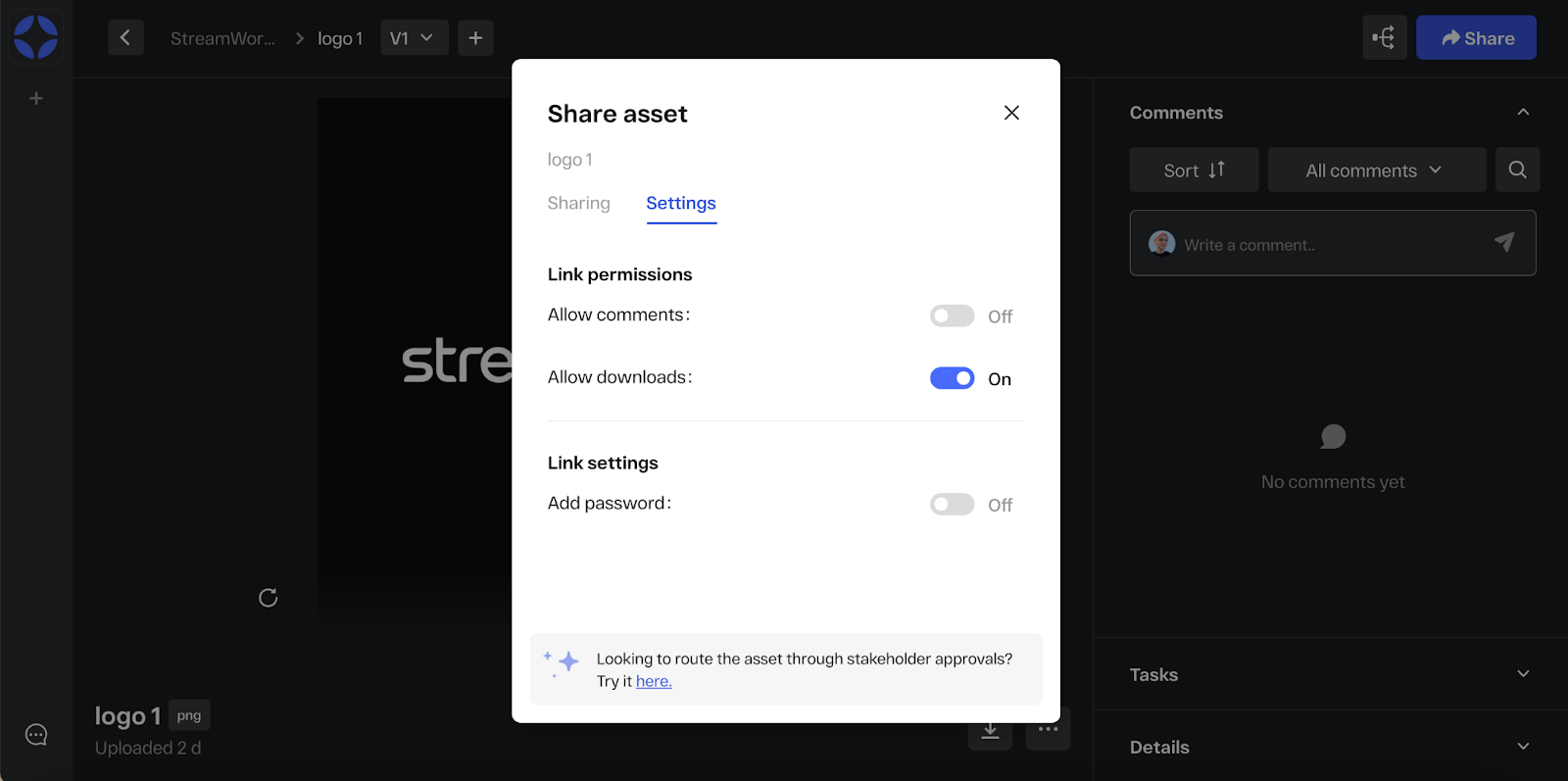
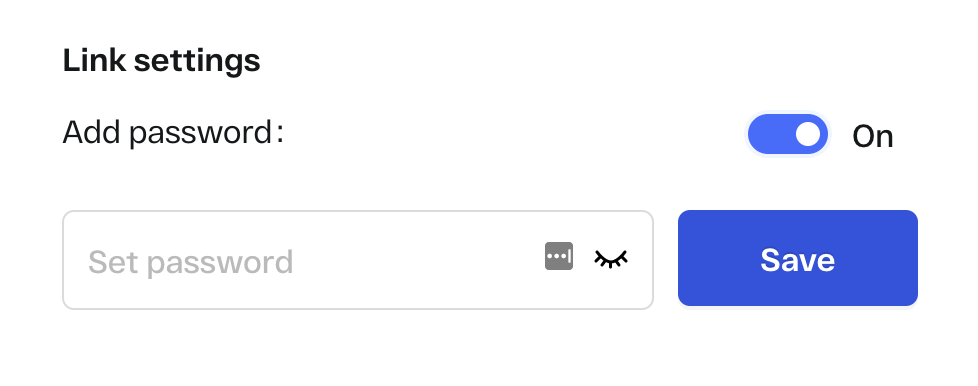
6. You can also choose whether to apply a password to the share link or not. To add a password, click “Add a password” and write in the password you would like to associate with the link. You will need to share this password with the recipient to ensure they can access the link.
7. Press “Send link” to send the link to the recipient(s) for review.
Tip: Need to share multiple files via a single share link? Check out this Help Center article to learn how!