---
title: How do I upload a media file?
description: Upload media directly from your computer, or drag & drop into StreamWork.
---
[Skip to content](https://help.streamwork.com/knowledge/how-do-i-upload-a-media-file#main-content)
English
Show submenu for translations
![logo--white-s-2.svg\]](https://help.streamwork.com/hubfs/logo--white-s-2.svg)
Open main navigation
Close main navigation
- English
Show submenu for translations
- Product
Product
Hello. How can we help you?
- There are no suggestions because the search field is empty.
1. [Help Center](https://help.streamwork.com/knowledge?hsLang=en)
2. [Media](https://help.streamwork.com/knowledge/media?hsLang=en)
# How do I upload a media file?
## Upload media directly from your computer, or drag & drop into StreamWork.
Uploading videos, images, documents, PDFs, audio files and more is easy in StreamWork (see full list of compatible file types). You can upload files and folders from most areas in the product via drag & drop or upload directly from your computer. If you drag & drop, you can select files directly from your computer and drag the file into StreamWork for upload.
**Upload from computer**
To upload a media file directly from your computer, follow these steps:
1\. Click on the upload button in the top right corner of the page:

2\. Next, an upload screen will appear. Select “Browse files” to open your computer files:

3\. Next, a thumbnail of the media(s) or folder(s) you are uploading will appear. Select which project you would like to upload the media to, and press “upload.”
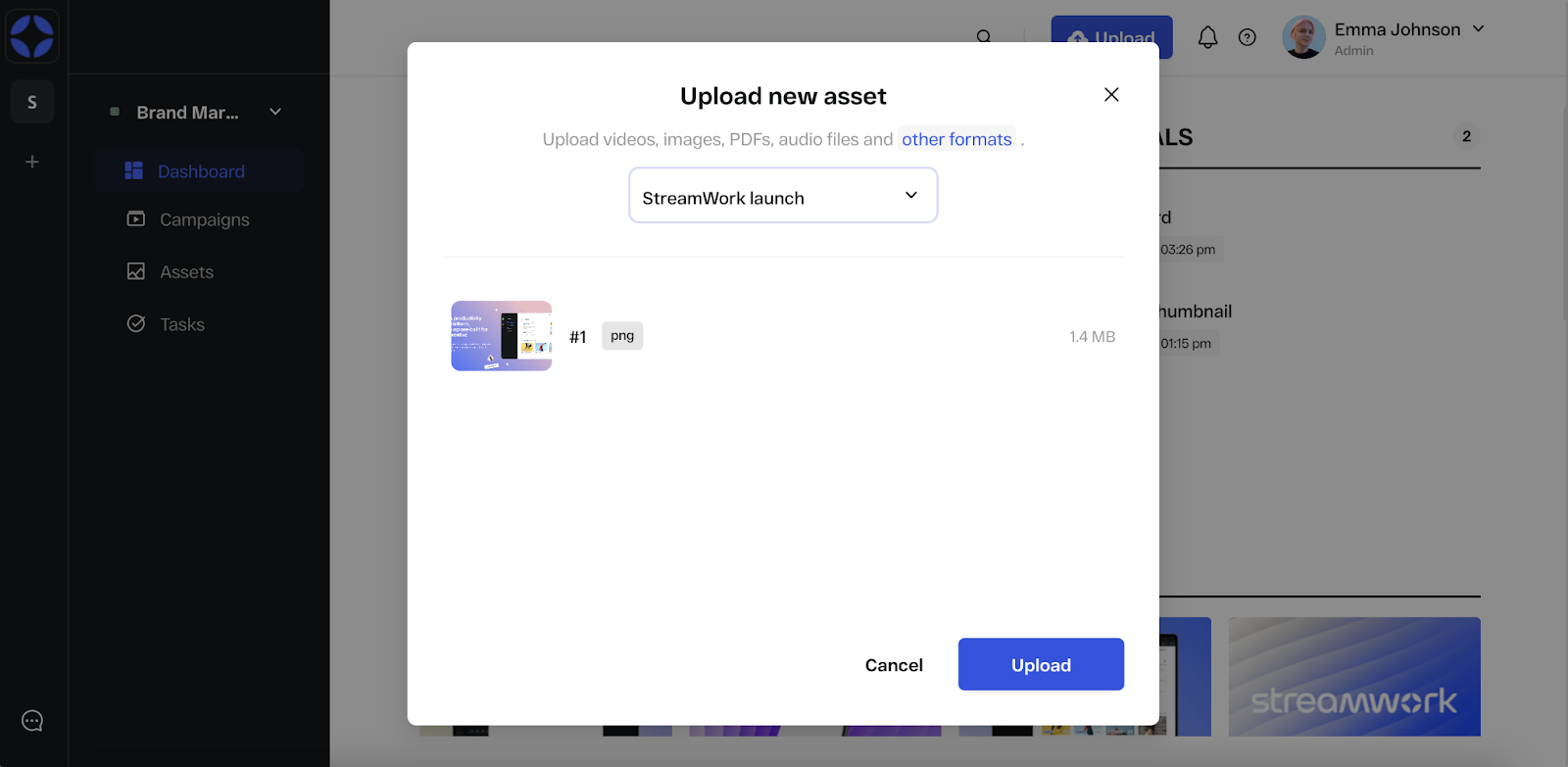
4\. If you would like to upload the media to a new project, select “+ Create new project” from the **Assign media to project** dropdown menu. From there, you can create a new project, name it, and choose whether the project is shared or private.

5\. Last, click “upload” and the media will begin uploading to StreamWork. You can see the amount of time remaining to upload and, if you’d like, pause the upload. The media file will appear in the project you designated.

**Drag & drop upload**
To drag & drop a media file into the dashboard, projects, or asset tabs, simply select the media from your computer and drag & drop the media into StreamWork.
### **See a media file upload in action:**
- [About StreamWork](https://help.streamwork.com/knowledge/about-streamwork?hsLang=en)
- [Get started](https://help.streamwork.com/knowledge/get-started?hsLang=en)
- [Roles](https://help.streamwork.com/knowledge/roles?hsLang=en)
- [Workspaces](https://help.streamwork.com/knowledge/workspaces?hsLang=en)
- [Projects](https://help.streamwork.com/knowledge/projects?hsLang=en#main-content)
- [Projects - Project Permissions](https://help.streamwork.com/knowledge/projects?hsLang=en#projects-project-permissions)
- [Folders](https://help.streamwork.com/knowledge/folders?hsLang=en)
- [Media](https://help.streamwork.com/knowledge/media?hsLang=en#main-content)
- [Media - Media Management](https://help.streamwork.com/knowledge/media?hsLang=en#media-media-management)
- [Comments and Annotations](https://help.streamwork.com/knowledge/comments-and-annotations?hsLang=en#main-content)
- [Comments and Annotations - Management](https://help.streamwork.com/knowledge/comments-and-annotations?hsLang=en#comments-and-annotations-management)
- [Tasks](https://help.streamwork.com/knowledge/tasks?hsLang=en#main-content)
- [Tasks - Task Management](https://help.streamwork.com/knowledge/tasks?hsLang=en#tasks-task-management)
- [Approval routing](https://help.streamwork.com/knowledge/approval-routing?hsLang=en)
- [Share links](https://help.streamwork.com/knowledge/share-links?hsLang=en)
- [Integrations](https://help.streamwork.com/knowledge/integrations?hsLang=en)
- [Account settings and notifications](https://help.streamwork.com/knowledge/account-settings-and-notifications?hsLang=en)
[](https://www.streamwork.com/)
Copyright © 2026, StreamWork