![logo--white-s-2.svg]](https://help.streamwork.com/hubfs/logo--white-s-2.svg)
Panel shortcuts
| Action | Shortcut |
|---|---|
| Open / Close Comments panel | Shift + Option + 1 |
| Open / Close Tasks panel | Shift + Option + 2 |
| Open / Close Details panel | Shift + Option + 3 |
| Enter / Exit Fullscreen | F |
| Previous visual comment | Shift + P |
| Next visual comment | Shift + N |
Annotation tool shortcuts
| Tool | Shortcut |
|---|---|
| Comment tool | C |
| Marker tool | D |
| Play/Pause Video | Space Bar |
| Select | V |
| Draw Arrow | A |
Video Shortcuts
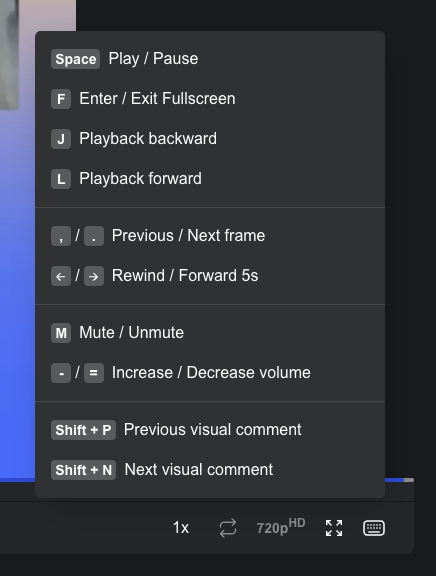
Videos in StreamWork have even more shortcuts. You can view these shortcuts anytime from keyboard icon on the right side of the video player timeline in StreamWork. Video shortcuts include:
| Action | Shortcut |
|---|---|
| Space | Play / Pause |
| Enter / Exit Fullscreen | F |
| Playback backward | J |
| Playback forward | L |
| Previous / Next frame | , | . |
| Rewind / Forward 5s | < | > |
| Mute / Unmute | M |
| Increase / Decrease volume | - | = |
| Previous visual comment | Shift + P |
| Next visual comment | Shift + N |
Tips
- Shortcuts work any time the Media Viewer is open and in focus
- You do not need to click into the viewer first for shortcuts to work
- Shortcuts are the same across all media types. Video has a few extra built-in to make the review experience even more seamless.
Forgot a keyboard shortcut? There are tooltips throughout StreamWork's interface to help you discover shortcuts to make it easy for you.
