---
title: How do I use side-by-side asset comparison?
description: Learn how to compare two versions of a file side by side in StreamWork, including how to sync video playback, control audio independently, and leave pinned comments in the comparison view.
---
[Skip to content](https://help.streamwork.com/knowledge/how-do-i-use-side-by-side-asset-comparison#main-content)
English
Show submenu for translations
![logo--white-s-2.svg\]](https://help.streamwork.com/hubfs/logo--white-s-2.svg)
Open main navigation
Close main navigation
- English
Show submenu for translations
- Product
Product
Hello. How can we help you?
- There are no suggestions because the search field is empty.
1. [Help Center](https://help.streamwork.com/knowledge?hsLang=en)
2. [Comments and Annotations](https://help.streamwork.com/knowledge/comments-and-annotations?hsLang=en)
# How do I use side-by-side asset comparison?
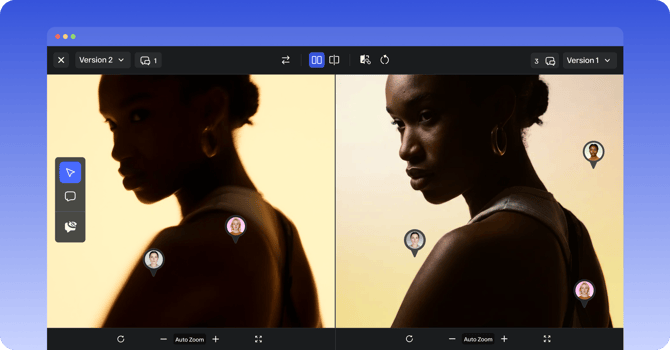
## Side-by-side comparison lets you view two versions of a file at the same time, so you can see exactly what changed without toggling back and forth.
****
**How to open side-by-side comparison**
1\. Open a file in the Media Viewer
2\. Click the "V1" button in the top left of the Media Viewer and click the down arrow

3\. If you have multiple versions uploaded, click the button "Compare versions" to access side-by-side comparison mode. If you only have one version uploaded, you'll be prompted to upload a second version to proceed.
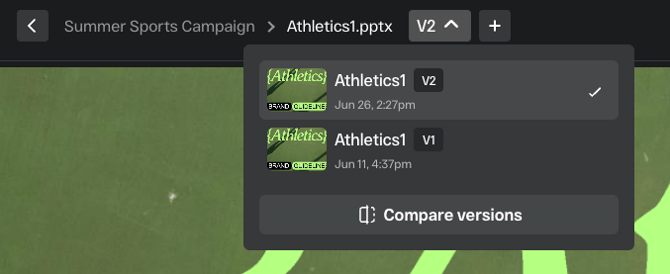
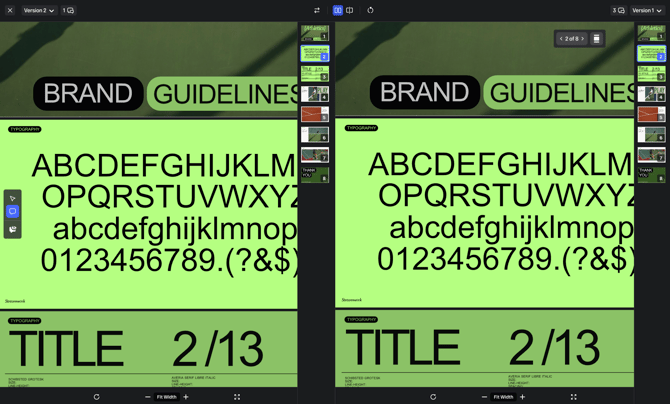
4\. Both files will appear side by side in the viewer.
**Supported media types**
Side-by-side comparison works with files of the same media type. You can compare two videos, two images, two PDFs, or two documents.
**For video files**
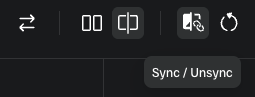
- Click Play on either video to play. When "Sync / Unsync" is activated, videos will either play in sync or not.
- Use the mute button on each video independently to control audio, useful when comparing different cuts or voiceovers.
- Pause either video to stop both.
**Comparison view tools**
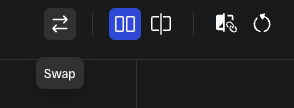
- Swap allows you to quickly swap the location of files in comparison view.
****
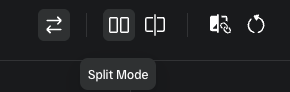
- Split mode allows you to equally split the screen between the two assets so that they appear the same size.
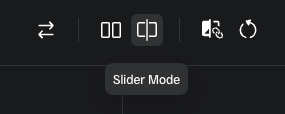
- Slider mode enables you to make one asset larger than the other for easy inspection.
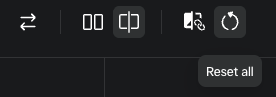
- Reset is a quick way to reset all settings back to the original.
**Leaving comments in comparison view**
You can leave pinned comments on either asset directly from the comparison view. Click anywhere on the asset to drop a comment. You do not need to exit the comparison view to leave feedback. To open the comment panel, click on the comment bubble icon in the top right or left side.
**Exiting comparison view**
Click the X or the Close button in the top left corner of the toolbar to return to the standard single-file viewer.
- [About StreamWork](https://help.streamwork.com/knowledge/about-streamwork?hsLang=en)
- [Get started](https://help.streamwork.com/knowledge/get-started?hsLang=en)
- [Roles](https://help.streamwork.com/knowledge/roles?hsLang=en)
- [Workspaces](https://help.streamwork.com/knowledge/workspaces?hsLang=en)
- [Projects](https://help.streamwork.com/knowledge/projects?hsLang=en#main-content)
- [Projects - Project Permissions](https://help.streamwork.com/knowledge/projects?hsLang=en#projects-project-permissions)
- [Folders](https://help.streamwork.com/knowledge/folders?hsLang=en)
- [Media](https://help.streamwork.com/knowledge/media?hsLang=en#main-content)
- [Media - Media Management](https://help.streamwork.com/knowledge/media?hsLang=en#media-media-management)
- [Comments and Annotations](https://help.streamwork.com/knowledge/comments-and-annotations?hsLang=en#main-content)
- [Comments and Annotations - Management](https://help.streamwork.com/knowledge/comments-and-annotations?hsLang=en#comments-and-annotations-management)
- [Tasks](https://help.streamwork.com/knowledge/tasks?hsLang=en#main-content)
- [Tasks - Task Management](https://help.streamwork.com/knowledge/tasks?hsLang=en#tasks-task-management)
- [Approval routing](https://help.streamwork.com/knowledge/approval-routing?hsLang=en)
- [Share links](https://help.streamwork.com/knowledge/share-links?hsLang=en)
- [Integrations](https://help.streamwork.com/knowledge/integrations?hsLang=en)
- [Account settings and notifications](https://help.streamwork.com/knowledge/account-settings-and-notifications?hsLang=en)
[](https://www.streamwork.com/)
Copyright © 2026, StreamWork