---
title: How do I use the text highlight tool?
description: Use the text highlight tool to point out what text you're referring to in your comments.
---
[Skip to content](https://help.streamwork.com/knowledge/how-do-i-use-the-text-highlight-tool#main-content)
English
Show submenu for translations
![logo--white-s-2.svg\]](https://help.streamwork.com/hubfs/logo--white-s-2.svg)
Open main navigation
Close main navigation
- English
Show submenu for translations
- Product
Product
Hello. How can we help you?
- There are no suggestions because the search field is empty.
1. [Help Center](https://help.streamwork.com/knowledge?hsLang=en)
2. [Comments and Annotations](https://help.streamwork.com/knowledge/comments-and-annotations?hsLang=en)
# How do I use the text highlight tool?
## Use the text highlight tool to point out what text you're referring to in your comments.
StreamWork's text highlight tool makes it easy to leave precise, in-context feedback on documents and slide decks without long explanations or back-and-forth. Instead of referencing page numbers or copying text manually, you can highlight the exact words you’re commenting on and keep feedback clear and actionable.
### When to use text highlight
Use the text highlight tool when you want to:
- Suggest edits to specific wording
- Flag typos or grammar issues
- Call out sections that need clarification
- Reference exact text in documents or slide decks
This tool is available for documents and presentation files that contain selectable text. The text highlight tool will not appear as an option in the StreamWork toolbar if the uploaded file does not have a selectable text layer.
### How to highlight text and create a comment
**1. Open the document or slides**
Navigate to the file you want to review and open it in the StreamWork Media Viewer.
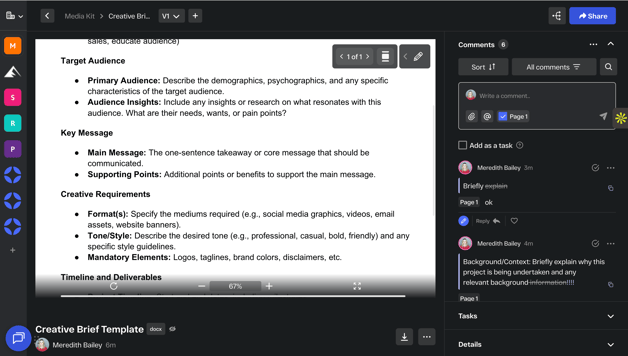
**2. Expand the StreamWork annotation toolbar in the top right**
Select the "text highlight" icon. It's the icon with brackets and text lines inside.
****
**3. In the document or presentation file, select the desired text**
Click and drag your cursor over the text you want to comment on and a small "T" icon will appear. Click the "T" icon to copy the selected text to a comment in StreamWork.

**4. Edit the text in the comment**
The selected text will automatically appear in a comment where you can make any edits required. You can add, delete or replace text with new copy. If you'd like, you can also provide additional context as to why you've made changes in the "Write a comment..." area.
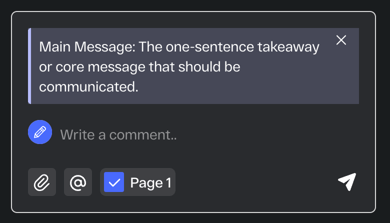
**5. Save the comment**
Once everything looks good, click save (the paper plane icon) to post your comment. The highlighted text will remain visually linked to the comment and you'll see the changes reflected.
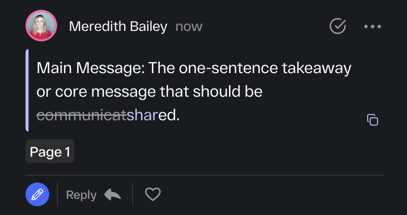
### Editing highlighted text comments
After submitting a comment:
- You can edit the comment text at any time by clicking the 3 dot menu in the top right of the comment. Select "edit".
- The highlighted text remains associated with the comment.
- Other reviewers can reply directly to the same highlighted section.
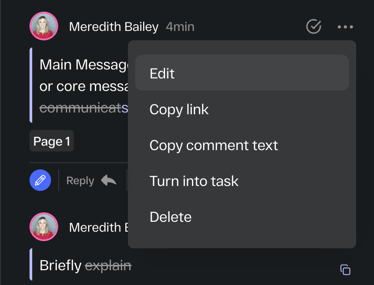
### Applying edits to the original file
Once feedback is reviewed and approved:
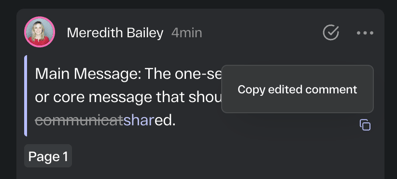
- Copy the edited text from the comment by clicking the copy/paste icon in the lower right of the comment.
- Paste the edited text into the original source file (Word, Google Slides, PowerPoint, etc.).
- Upload the revised version to StreamWork to continue the review process.
This ensures version history stays clean while edits are clearly documented.
### Best practices for clear feedback
- Highlight only the specific phrase or sentence you’re commenting on
- Keep comments short and actionable
- Use replies to clarify instead of creating multiple overlapping highlights
- Combine text highlight with other markup tools when needed for context
### Common Questions
**Why can’t I highlight text?**
The text highlight tool requires selectable text. If the document is a scanned image or a flattened file, text highlighting won’t be available.
**Can I highlight text on images or videos?**
No—text highlight is designed for documents and slides only. Use pin comments or drawing tools for images and videos.
**Will highlights move if the file is updated?**
Highlights are tied to the specific version. Upload a new version to continue feedback cleanly.
If you have questions or need help using text highlight, reach out to our team at **support@streamwork.com**. We’re happy to help!
- [About StreamWork](https://help.streamwork.com/knowledge/about-streamwork?hsLang=en)
- [Get started](https://help.streamwork.com/knowledge/get-started?hsLang=en)
- [Roles](https://help.streamwork.com/knowledge/roles?hsLang=en)
- [Workspaces](https://help.streamwork.com/knowledge/workspaces?hsLang=en)
- [Projects](https://help.streamwork.com/knowledge/projects?hsLang=en#main-content)
- [Projects - Project Permissions](https://help.streamwork.com/knowledge/projects?hsLang=en#projects-project-permissions)
- [Folders](https://help.streamwork.com/knowledge/folders?hsLang=en)
- [Media](https://help.streamwork.com/knowledge/media?hsLang=en#main-content)
- [Media - Media Management](https://help.streamwork.com/knowledge/media?hsLang=en#media-media-management)
- [Comments and Annotations](https://help.streamwork.com/knowledge/comments-and-annotations?hsLang=en#main-content)
- [Comments and Annotations - Management](https://help.streamwork.com/knowledge/comments-and-annotations?hsLang=en#comments-and-annotations-management)
- [Tasks](https://help.streamwork.com/knowledge/tasks?hsLang=en#main-content)
- [Tasks - Task Management](https://help.streamwork.com/knowledge/tasks?hsLang=en#tasks-task-management)
- [Approval routing](https://help.streamwork.com/knowledge/approval-routing?hsLang=en)
- [Share links](https://help.streamwork.com/knowledge/share-links?hsLang=en)
- [Integrations](https://help.streamwork.com/knowledge/integrations?hsLang=en)
- [Account settings and notifications](https://help.streamwork.com/knowledge/account-settings-and-notifications?hsLang=en)
[](https://www.streamwork.com/)
Copyright © 2026, StreamWork