![logo--white-s-2.svg]](https://help.streamwork.com/hubfs/logo--white-s-2.svg)
Before You Get Started
To connect StreamWork with Asana:
- You must be a StreamWork Organization Admin
- You must have access to the relevant Asana workspace and projects
- You’ll need permission to add apps from the Asana App Directory
1. Install the StreamWork App in Asana
Go to the Asana App Directory and select the StreamWork Integration. Click the "Install StreamWork for Asana" button, and follow the prompts. When prompted, log in to your StreamWork account and grant StreamWork access to your Asana projects. Once access is granted, the integration will be enabled for your account.
2. Add Custom Fields to Your Asana Project
Custom fields allow approval data from StreamWork to sync directly into Asana.
How to add custom fields:
- Open your Asana project.
- Create (or open) a task.
- Click the “+” icon in a blank column.
- Select Choose from Library.
- Add the following custom fields:
Required fields:
- Approval Status
- Approval URL
- Media Name
- Stage Name
You may also add any additional fields you’d like to track. These fields will automatically sync with StreamWork once the integration is active.
3. Locate the StreamWork Approval URL
Next, head to StreamWork and locate the approval workflow you'd like to connect to your Asana project. You can connect any StreamWork approval to Asana, regardless of the number of media files or version in the workflow. You can find the approval link in two places inside of StreamWork:
-
Inside the Project "approval" tab: Select the approval routing you'd like to link to and open it. Click the 3 dot menu next to the Approval routing name and select "Copy approval link"
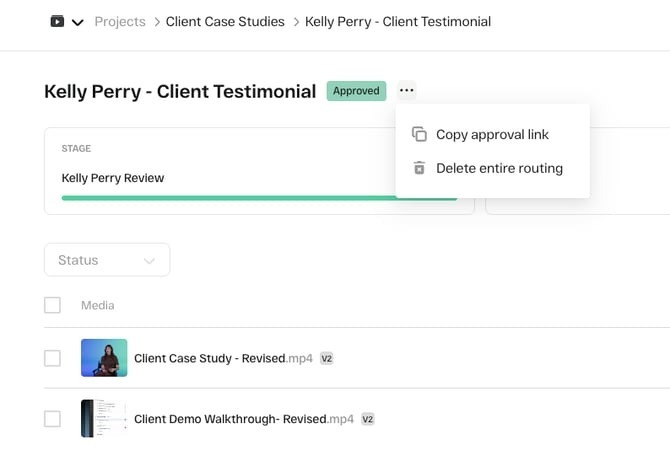
- From the "Approvals" tab in the main navigation: Click on the approval you'd like to link to in Asana, and hover over the 3 dot menu to the far right hand side. Select "Copy approval link"
4. Paste the StreamWork Approval link in Asana and Watch it go!
Go to the custom column you created earlier called “Approval URL.” Paste the StreamWork Approval link into this column and watch the custom columns you've already added to your project auto-update to reflect all the relevant information your team needs to track the approval, including: approval status, stage name, and version updates will populate the custom fields.
Note: You can also paste the Approval URL in the StreamWork widget, which can be found inside of the Asana task. Simply click the task and paste the Approval URL in the widget.
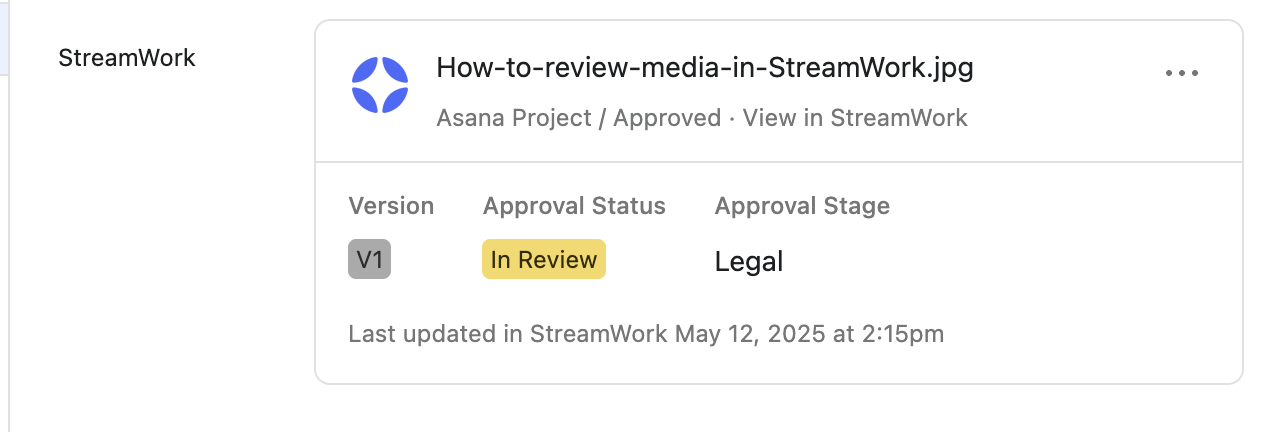
Quick Tip: Stakeholders can click the Approval URL link anytime to review and approve assets, directly from within Asana.
Check out this quick step-by-step video by Kelly Perry, Creative Ops Consultant and Asana Expert, showing how to set-up the StreamWork + Asana integration:
Questions? Our team is here to help! Reach out to support@streamwork.com