![logo--white-s-2.svg]](https://help.streamwork.com/hubfs/logo--white-s-2.svg)
1. Log-in to your Monday.com account and StreamWork account
You can access your Monday account at www.monday.com and StreamWork account at www.app,streamwork.com.
2. Create a Text Column:
Next, select a board in your Monday.com account where you'd like to connect StreamWork, and add a Text column. Name the column “Approval link.” This is how the integration will identify which approval workflow and media files in StreamWork corresponds to which task in Monday.com.
3. Access the StreamWork app on Monday.com:
Click the "Integrate" button in the top-right corner of your Monday account. Search for the "StreamWork" app in the Monday marketplace and click “Use template.”
4. Set Up the StreamWork Integration Template:
After selecting the StreamWork app, a Monday automation template called "When column changes, attach media from Streamwork” will automatically appear. Change the word “column” to “Approval link” and then select “Create automation.” You will then be redirected back to the template setup page on Monday.com.
5. Locate the StreamWork approval link:
Next, head to StreamWork and locate the approval workflow you'd like to connect to your board in Monday.com. You can connect any StreamWork approval to Monday, regardless of the number of media files or version in the workflow. You can find the approval link in two places inside of StreamWork:- Inside the Project "approval" tab: Select the approval routing you'd like to link to and open it. Click the 3 dot menu next to the Approval routing name and select "Copy approval link"
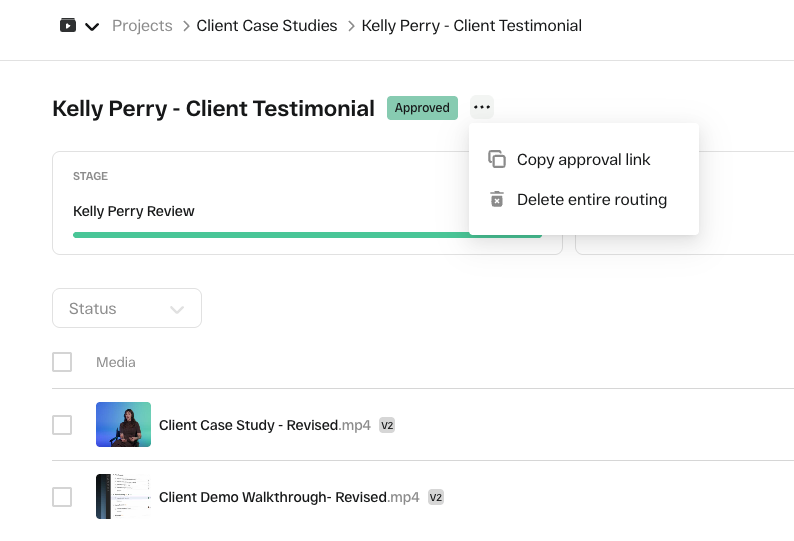
- From the "Approvals" tab in the main navigation: Click on the approval you'd like to link to in Monday, and hover over the 3 dot menu to the far right hand side. Select "Copy approval link"
6. Paste the StreamWork approval link in Monday.com
The text column you created earlier called “Media URL.” Paste the StreamWork asset link into this column and watch your board auto update!
6. Watch it go!
The StreamWork integration is now active for the board! Add as many assets as you’d like to Monday.com to track approval and proofing progress in one place.